

What is an M&S PASS
An M&S PASS is a way for us to check it's really you that's accessing your digital banking services and is a type of two-factor authentication.
The M&S PASS adds an additional layer of protection as it generates unique security codes when you're signing in to digital banking or verifying certain transactions. You can either use a Digital M&S PASS or a physical M&S PASS.
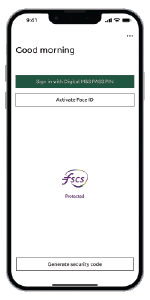
Digital M&S PASS
You can access the Digital M&S PASS by downloading the M&S Bank app.
- Our app gives you quick and easy access to mobile and Online Banking
- You can securely sign in with your face or fingerprint on compatible devices
- Gain access to your accounts now - no need to wait for a physical M&S PASS to arrive
If you’re ready to set up your Digital M&S PASS, download the M&S Bank app.
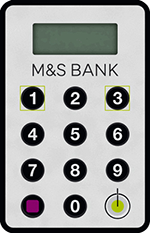
Physical M&S PASS
If you don't have a compatible device, you can order a physical M&S PASS which will generate the security codes you'll need to access your accounts. This is a small calculator-like device.
To order a physical M&S PASS, sign in to Online Banking using the details you've set up and select the option to 'Order M&S PASS'.
M&S PASS help and support
Find support if you're having trouble using your M&S PASS.
M&S PASS troubleshooter
Your physical M&S PASS provides you with an extra layer of protection against online fraud. If something isn't right with your M&S PASS, an error message will show.
For more information on the error message, follow the steps below and we’ll provide you with the answers on what to do:
- Sign in to Online Banking
- Enter your username, then 'Continue'.
- Read and continue through any popup messages that may appear.
- Select 'Need help with your M&S PASS?’.
- Select 'Error code troubleshooter’.
- Enter the error message shown on your M&S PASS and follow the instructions for what you need to do.
Helping you understand your physical M&S PASS
What are the buttons on my PASS used for?
Green Button
- Press and hold for 2 seconds to turn the M&S PASS on
- Enter your PIN
- Press this button once to delete one character
- Press and hold to clear all characters
- After you've entered your PIN, press to generate a log-on security code
Fuchsia Button
- This button is used after creating a new PIN
- The fuchsia button is also used to generate a transaction code for authorising new payments