

Which kind of M&S PASS do you have?
Digital M&S PASS in the M&S Bank app
Physical M&S PASS
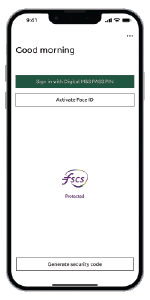
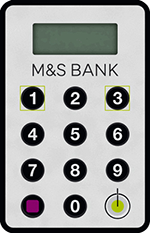
Digital M&S PASS in the M&S Bank app
How to set up the M&S Bank app to access your Digital M&S PASS
The M&S Bank app has the Digital M&S PASS functionality built-in meaning, you will use the app to generate security codes if you ever need to sign in to Online Banking.
If you're not already registered for digital banking, please download and register for the M&S Bank app to set up your Digital M&S PASS.
If you're already registered for digital banking, you may have previously used a physical PASS (a small calculator like device). By following the below steps, you can set up a digital version on our app called the Digital M&S PASS. This means you will no longer be able to use your physical PASS once you set up the app. Please choose one of the below and follow the steps:
How to generate a security code to sign in to Online Banking using the M&S Bank app
- Enter your username on the Online Banking sign in screen. You'll then be asked for a security code which you'll need to generate using the M&S Bank app
- Launch your M&S Bank app, but do not sign in
- Tap the 'Generate security code' option at the bottom of the page, and then select 'Online Banking - Sign in code'
- Press the green button (bottom right) again to generate a security code
- Enter this code on the Online Banking sign in screen and click 'Sign in'
That's it! You should now be able to see your accounts summary screen.
Download our app today
Ready to start using the M&S Bank app?
Physical M&S PASS
Setting up your physical M&S PASS
How to set up your physical M&S PASS
- You'll need to wait for your physical M&S PASS to arrive in the post along with the unique activation code. These can take at least 7 working days to arrive and you will not be able to access Online Banking until you have received them. If you don't want to wait for a physical PASS to arrive, you can use the Digital M&S PASS instead.
- Once you've got both your physical M&S PASS and activation code, you'll need to sign in to Online Banking where you'll be prompted to activate your physical PASS.
- You need to enter the activation code we've sent to you in the post and the serial number on the back of your physical M&S PASS in the bottom left corner, as shown on the example image.
- Follow the on-screen instructions to create your own memorable 4-8 digit PIN for the PASS and generate a sign-in code for Online Banking. You will need to remember this PIN as you'll use it in future to generate sign-in codes for Online Banking and to verify transactions.
That's it! Your physical M&S PASS should now be activated. You can register for a Digital M&S PASS at any time should you wish, which would replace your physical M&S PASS.
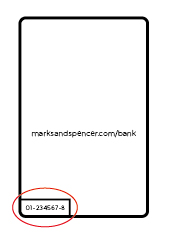
How to generate a security code to sign in to Online Banking using a physical M&S PASS
- Enter your username on the Online Banking sign in screen. You'll then be asked for a security which you'll need to generate using your physical M&S PASS
- Switch on your device by holding down the button with the green circle (bottom right) for 2 seconds
- Enter your PASS PIN into your physical M&S PASS
- Press the green button (bottom right) again to generate a security code
- Enter this code on the Online Banking sign in screen and click 'Sign in'
That's it! You should now be able to see your accounts summary screen.
Please note, if you use the M&S Bank app and have set up your Digital M&S PASS, you now need to use this to access Online Banking.
Your physical M&S PASS will no longer work, as your are not able to use both a Digital and physical M&S PASS.